Thursday, August 21, 2014

The Basics of Google Analytics for Beginners

If you're a business owner or a member of a marketing team, you probably know that businesses depend upon data. Tracking trends and patterns is what allows you to get ahead of the dips in the market, and make informed decisions on the direction of your company.

Those same rules that apply to business apply to owning a website. In order to deliver the best possible experience and ensure that customers from around the world are able to access your site, you need to understand from where traffic is coming from and how to leverage that information to your benefit.

Setting Your Site Up With A Tracking ID

Google Analytics won't start collecting data from your website until you've implemented a tracking code into your website's files. The tracking code is basically a block of JavaScript code that will collect data about the html that visitor used to get to your site, any cookies that the visitors has collected during their browsing history, and information about what type of browser the person is using.

The importance of this information provides you with information on how to conform your web-site to the target audience, especially in terms of design. If customers are visiting your website from an eCommerce directory, you may want to modify those links so that the customers arrive at a landing page instead of a home page. If more customers are using smartphones and tablets instead of laptop browsers, you may have to redesign the site so that it is responsive and can be easily read from a small screen.

google analytics tracking code

In order to track each individual page on the website, you will need to add a tracking code before the </head> code of your template. If you are using a site like WordPress or Joomla! that depends on templates, you may just have to add the tracking code on the main HTML index file. Keep in mind that it can take upwards of 24-hours for Google to begin collecting information and importing that data to your dashboard, so don't expect to see measurable results right away.

Tutorial: How to Add Google Analytics to Blogger

Researching the Data

Once you insert the code into your site, it will begin tracking data from anyone who visits your site. This data is then sent back to the Google servers and stored in your Google Analytics profile. From there, you can determine what type of information that you want to look at.

The two features of Google Analytics that are often most useful to new users is the ability to track where customers are coming from, and the ability to see keywords that have been effective in drawing in audiences.

google analytics overview

Traffic Origins

Open up your Google Analytics dashboard and click on 'Acquisition'. You should see a few options, but you want to pull 'All Referrals' so that you can the entire list of visitors.

Next to the referral path will show a few links with a number of how many people visited your site from that link. From here you can click on the link and find out the reason for the traffic. Maybe someone has written a review on the service, you can check to see if the advertisement campaign you are operating is producing results.

google analytics all referrals

Keywords

Within the same 'Acquisition' directory is another option called 'Search Engine Optimization'. Click on this link and then click on 'Queries' to look up a list of keywords being used to describe your site. The dashboard will display an overview of up to 1,000 words or phrases used on Google that brought new visitors to your site. You can use this information to modify your posts and producing content to increase the results of certain key phrases that you feel would benefit your customer outreach.

search engine optimization, ga queries

Demographics

Underneath the audience tab, you can also track demographics. This little option will allow you to view the age, gender, and interests of individual users and segments of your visiting population. Say for example you run a senior care facility for the retired and want to put together a A/B split test to determine which advertising campaign works best. After adding the campaign to a landing page or section of your site, you can look back and find out if retired citizens are the ones responding to your ads, or if you are just bringing in traffic from younger generations who may not be interested in your services.

google analytics, georgraphical summary

Custom Campaign Tagging

Custom campaign tagging is more of an advanced feature, but once you get used to the Google Analytics interface, you can use this to separate your campaigns and easily filter through data. Maybe you just want to find out who is coming to your site from your email newsletters, and not from the general site. Google Analytics will allow you to post special links to your content on those channels of communication and then view these results under the acquisition tab and then campaigns.

Determining What Works, and What Doesn't

Using the tools that Google Analytics provides at your disposal allows you to really determine what type of experience you want to provide your customers. Within the first month of use, if start to see trends or patterns in data that you feel you feel you can improve upon, you can use this information as a guide to edit your sites design and layout.

Getting used to the program might seem overwhelming at first, but once you jump right in and start playing around all the features, you'll get the hang of it in no time. Google Analytics really is an important tool that every website owner should have.

Thursday, August 14, 2014

How to Center the Blogger Header Image

The header of a website is what distinguishes your blog; it's your identity or digital fingerprint. Whenever a visitor accesses your blog for the first time, the header is one major aspect that is used to determine who you are and the type of content that they can expect to read. Therefore, it's important to develop a header that is both prominently placed and telling of your brand name.

What would seem to be counterintuitive to that idea is the default Blogger settings for header positioning. Whenever you upload a header to the site, it will automatically be aligned to the left of the page. Some Blogger users may be okay with this setting, especially if they are using a header design that doesn't contain a background. Others may find that their background headers appear cut off, incomplete, or indistinguishable from the rest of their content.

If you find yourself in the second category of users, there is a way to adjust the positioning of your header so that it is displayed as a center Blogger header. By centering your site header, you have greater flexibility over the overall design, and it allows you to really shine light on this content. It's hard to miss a header that is placed smack dab in the middle of the screen on every page that someone navigates to.

Center Header Image with Blogger Template Designer


center blogger header

Making the change is relatively easy. You'll be able to make these adjustments on every page of your Blogger blog without having to change them individually. All you need to do is to modify the CSS of your blog that can be found directly through your Blogger dashboard. Even if you have little to no experience in web design or coding, you can center Blogger header by following these next few steps.

Step 1. Log in your blogger account and select your blog, then go to "Template" and click the "Customize" button on the right side.

center blogger header

Step 2. Navigate to "Advanced" > "Add CSS" tab and paste the code in the empty box:
#header-inner {
background-position: center !important;
width: 100% !important;
text-align: center;
}
#header-inner img {
margin: auto;
}
If you have a small image and you want it to become full width, add this CSS instead:
#header-inner {
 background-size: cover;
 width: 100% !important;
 text-align: center;
 }
 #header-inner img {
 width: 100%;
 height: 100%;
 }

Step 3. Hit the ENTER key after you paste the code snippet, then click the "Apply to Blog" button.

blogger header centered

Here are some other aligning options for your headers:

Align Blogger Header Banner and Text Side by Side

Image on the right and title on the left

#header-inner {
background-position: right !important;
width: 100% !important;
}
.titlewrapper, .descriptionwrapper {
float: left;
clear: both;
margin-left: 20px;
}

Image on the left and title on the right

#header-inner {
background-position: left !important;
width: 100% !important;
}
.titlewrapper, .descriptionwrapper {
float: right;
clear: both;
margin-right: 20px;
}
Note: for larger images, you may need to resize them in order to make them appear side by side with the text.

That's it!
After making the changes to the CSS and saving your modifications, you may navigate back to your homepage. Refresh the page and you'll notice that the header is now centered, instead of on the left. Click on a few of your page links and make sure that this modification has been made to every page or post on the blog.

If by chance you don't see the changes to the header, go back through the code that you modified and make sure that you have copied and pasted the information into the file exactly as instructed. Even minor modifications in the code, or a missing semicolon may fail to make the changes you are trying to achieve, or come away with different results than what's expected.

The great thing about CSS is that it is your site's central hub for all things design. From the CSS file, you can modify just about any appearance on your site to give the blog a custom look and feel. Once you're comfortable performing minor adjustments to the appearance of your site, you can start to get creative and come up with your very own modifications.

Friday, August 8, 2014

Trik Bagaimana Mencari Blog Zombie

Tips dan trik bagaimana cara mencari blog zombie. Sepertinya mulai rame lagi para blogger yang melakukan kegiatan dalam hal mencari blog zombie. Memang kegiatan ini sedikit menarik sebab mempunyai tantangan tersendiri. Masalahnya mencari blogspot yang sudah dihapus dan memiliki pagerank tinggi itu juga tidak mudah. Ini mungkin akan menjadi pengalaman yang unik bagi yang melakukannya, dengan susah payak ketika menemukan satu saja blog zombie yang ber pagerank tinggi mungkin Anda akan kegirangan dibuatnya.

Sabar, mungkin itulah kata yang harus dijadikan sebagai motto untuk Anda yang mencari blog zombie menggunakan teknik dengan cara manual. Sebab tentu Anda harus satu demi satu mengecek setiap blog dari sekian banyak blog-blog yang hidup untuk menemukan salah satu yang terhapus, dan saat menemukannya belum tentu juga blog zombie tersebut berpagerank tinggi.

Bagi Anda yang mungkin belum pernah mencobanya dan mau mencoba silahkan saja sebab sampai saat ini memang belum ada larangan untuk menghidupkan kembali blog yang sudah terhapus untuk Anda daftarkan dan digunakan kembali. Tetapi akan lebih baik dan bermanfaat jika blog tersebut nantinya dibuat sebagai blog yang lebih berguna. Dengan begitu tentu tidak saja dapat dijadikan untuk menanam backlin bagi blog utama, tetapi juga dari blog zombie yang anda kelola dengan baik itu tentu bisa juga menghasilkan earning yang lebih baik juga.


blog-zombie

Teori Cara Manual Untuk Mencari Blog Zombie

Saran saya sebaiknya ketika melakukan kegiatan mencari blog zombie ini usahakan Anda sedang tidak login dengan akun gmail untuk menghindari kemungkinan akun anda di blokir sebab dari IP Anda terdeteksi melakukan traffik yang tidak wajar. Ini bisa terjadi sebab pasti Anda akan berulang ulang mengunjungi banyak sekali blog dalam waktu yang singkat pada saat mengecek blog satu persatu untuk memastikan apakah blog yang terhapus itu bisa didaftarkan lagi atau tidak. Sebab tidak semua blog yang sudah terhapus dapat Anda daftarkan kembali. Caranya mencarinya seperti berikut ini.

  • Jika Anda browsing menggunakan Mozila Firefox terlebih dulu Anda install Add On "LinkChecker", yang nantinya akan digunakan untuk mengecek link yang sudah terhapus.
  • Berikutnya hanya tinggal menggunakan beberapa perintah di mesin pencari untuk menemukan blog sesuai kategori atau keyword yang diinginkan. Beberapa perintah yang dapat Anda gunakan diantaranya sebagai berikut:

site:blogger.com/profile KEYWORD Blogs I follow
site:blogger.com/profile KEYWORD Location: NEGARA
site:blogger.com/profile KEYWORD On Blogger since {RANDOM-Bulan} {RANDOM-Tahun}
site:blogger.com/profile {KEYWORD} Gender: {RANDOM-Gender}


mencari-blog-zombie

  • Ketikan salah satu perintah seperti di atas, jika sudah klik salah satu profil blogger tersebut nanti akan masuk ke halaman Admin tersebut dengan beberapa blog yang dimiliki dan diikutinya.

mencari-blog-zombie

  • Jika add on "linkchecker" sudah terinstall di browser Anda, lalu di halaman profil itu Anda klik kanan kemudian pilih dan klik pada tab "Check Page Link", dan biarkan semua link di cek hingga selesai.
  • Jika nantinya ada link yang di tandai warna merah itu adalah blog yang sudah terhapus, dan link bertanda hijau adalah blog yang masih aktif.
  • Untuk memeriksa apakah blog yang terhapus masih dapat didaftarkan atau tidak, Anda harus klik link yang bertanda merah tersebut.
  • Jika blog itu bisa didaftarkan apalagi mempunyai PR tinggi silahkan langsung saja Anda daftarkan menjadi blog baru. Blog dengan PR 0 juga lumayan , sebab untuk mencapai pagerank 0 itu butuh waktu 1 tahun lebih.
blog-zombie-gratis
Update Blog Zombie Gratis 30/09/14
    • Pada gambar di atas, itu adalah daftar blog zombie terbaru yang saya share buat pengunjung blog ini dan akan selalu saya update jika mendapatkan yang baru. Klik untuk memperbesar gambar. Bagi Anda yang sedang berburu blog zombie silahkan di register, dan jangan lupa berikan g+ plus sobat biar saya semangat share lagi.

    Bagimana? Cara mencari blog zombie ini sebetulnya sangat mudah bukan? Hanya untuk menemukan blog zombie yang berpagerank tinggi dan bisa didaftarkan yang memang cukup sulit. Untuk Anda yang penasaran ingin mencobanya silahkan bereksperimen, selamat mencoba semoga berhasil.

    Wednesday, August 6, 2014

    HTTPS as a ranking signal

    Webmaster level: all

    Security is a top priority for Google. We invest a lot in making sure that our services use industry-leading security, like strong HTTPS encryption by default. That means that people using Search, Gmail and Google Drive, for example, automatically have a secure connection to Google.

    Beyond our own stuff, we’re also working to make the Internet safer more broadly. A big part of that is making sure that websites people access from Google are secure. For instance, we have created resources to help webmasters prevent and fix security breaches on their sites.

    We want to go even further. At Google I/O a few months ago, we called for “HTTPS everywhere” on the web.

    We’ve also seen more and more webmasters adopting HTTPS (also known as HTTP over TLS, or Transport Layer Security), on their website, which is encouraging.

    For these reasons, over the past few months we’ve been running tests taking into account whether sites use secure, encrypted connections as a signal in our search ranking algorithms. We've seen positive results, so we're starting to use HTTPS as a ranking signal. For now it's only a very lightweight signal — affecting fewer than 1% of global queries, and carrying less weight than other signals such as high-quality content — while we give webmasters time to switch to HTTPS. But over time, we may decide to strengthen it, because we’d like to encourage all website owners to switch from HTTP to HTTPS to keep everyone safe on the web.


    Lock


    In the coming weeks, we’ll publish detailed best practices (it's in our help center now) to make TLS adoption easier, and to avoid common mistakes. Here are some basic tips to get started:

    • Decide the kind of certificate you need: single, multi-domain, or wildcard certificate
    • Use 2048-bit key certificates
    • Use relative URLs for resources that reside on the same secure domain
    • Use protocol relative URLs for all other domains
    • Check out our Site move article for more guidelines on how to change your website’s address
    • Don’t block your HTTPS site from crawling using robots.txt
    • Allow indexing of your pages by search engines where possible. Avoid the noindex robots meta tag.

    If your website is already serving on HTTPS, you can test its security level and configuration with the Qualys Lab tool. If you are concerned about TLS and your site’s performance, have a look at Is TLS fast yet?. And of course, if you have any questions or concerns, please feel free to post in our Webmaster Help Forums.

    We hope to see more websites using HTTPS in the future. Let’s all make the web more secure!

    Make Blogger Header, Navigation and Footer Full Width

    Blogger is a user-friendly service that provides a lot of really attractive looking default templates for those just starting out. Default templates come in handy, but the nice things about owning your own blog is that you have the chance to add your own personal touch. As a matter of fact, templates aren't made to restrict your freedom of design, but instead they're there to provide you a foundation to build from. With every default template available on Blogger, you can make changes to fit your style.

    One of the most common requests out of the Blogger community when making alterations is how to change the look of some of the key sections like header, navigation, and footer. Initially, these items are designed to fit within just 1/3 of the page, surrounded by padding and margins on either side. These margins are used to give the page a slim fitting appearance, but could also cause your content to look compressed.

    Important: Backup your Template

    Making the changes to a full screen Blogger navigation, footer, or header can be done and won't take you much time. Before you can make any changes, you should save extra copies of the template .xml file in case anything goes wrong. That way, if you don't like it or it doesn't come out looking like it should, you can reuse the contents of the original file to restore your blog to working condition.

    Demo

    Hover your mouse over the image to see a before and after example:


    How to Make Header, Navigation and Footer Full Width in Blogger

    Step #1: Access Your CSS File

    If you've never opened up your CSS file before, log in to your Blogger account, select your blog and navigate to Template > Edit HTML. This will bring up the code of your template containing all your blog's internal files in one place.

    Step #2: Modify the Background

    Click anywhere inside the code area > press CTRL + F keys and type the following line > hit Enter to find it (stop at the first occurrence of it):
    body {
    Just below body { you should see some lines that will look like this:
    body {
    font: $(body.font);
    color: $(body.text.color);
    background: $(body.background);
    padding: 0 $(content.shadow.spread) $(content.shadow.spread) $(content.shadow.spread);
    $(body.background.override)
    }
    Where you see the highlighted line above in the code, remove the line and replace it with:
    padding: 0px;
    Different templates will have minor variations, but you should still be able to find these lines within every template.

    Step #3: Change the Content Section

    Next, search using the CTRL+F keys for this part:
    .content-inner {
    Just below it, you will see this line:
    .content-inner {
    padding: $(content.padding) $(content.padding.horizontal); 
    }
    Remove the line in red and replace it with:
    padding: 0px;
    This will remove any of the padding around the inner content, so it won't leave any room on both sides.

    Now find this part:
    $(content.background.color.selector){
    Just below it you will see this line:
    $(content.background.color.selector){
    background-color: $(content.background.color);
    }
    Replace the line in red with:
    background-color: $(body.background);
    Finally, search for this tag:
    ]]></b:skin>
    And just above it, add this CSS:
    .main-outer {
    background: $(content.background.color);
    }

    Step #4: Make the Content Outer Full Width

    Content is displayed differently between browsers, so you'll next want to fix this so that it alters the width across the board. This code can be found searching for:
    .content-outer, .content-fauxcolumn-outer, .region-inner {
    And just below it you will see the following lines:
    .content-outer, .content-fauxcolumn-outer, .region-inner {
    min-width: $(content.width);
    max-width: $(content.width);
    _width: $(content.width);
    }
    Delete the line in red and replace that line with:
    max-width: 100%;

    Step #5: Finish It Up

    Now you have just two more lines you need to change. Look for:
    </b:template-skin>
    And click on the right arrow to expand the styles. Note: you will need to search for </b:template-skin> tag again, and just before it you'll see these symbols highlighted in yellow:
    ]]>
    </b:template-skin>
    Above this ]]></b:template-skin> section of code, add the following:
    .main-outer {
    max-width: $(content.width);
    margin: 0 auto;
    }
    Then run a search for:
    ]]></b:skin>
    Add these lines of code just before/above it:
    .tabs-inner {
    padding: 0px;
    }
    .section {
    margin: 0px;
    }
    .header-inner .widget {
    margin: 0px;
    }
    Save the template and exit out of the editor.

    Finished!

    Following along with this tutorial won't affect or alter the pictures you are using on the blog, just the design of the content area. If you have a logo that stretches across the screen and fits perfectly for 1/3 page header, you will need to resize and re-upload this content so that it is able to work with the new adjustments.

    Monday, August 4, 2014

    Introducing the Google News Publisher Center

    Introducing the Google News Publisher Center

    (Cross-posted on the Google News Blog)

    Webmaster level: All

    UPDATE: Great News -- The Publisher Center is now available in all countries where Google News has an edition.

    If you're a news publisher, your website has probably evolved and changed over time -- just like your stories. But in the past, when you made changes to the structure of your site, we might not have discovered your new content. That meant a lost opportunity for your readers, and for you. Unless you regularly checked Webmaster Tools, you might not even have realized that your new content wasn’t showing up in Google News. To prevent this from happening, we are letting you make changes to our record of your news site using the just launched Google News Publisher Center.

    With the Publisher Center, your potential readers can be more informed about the articles they’re clicking on and you benefit from better discovery and classification of your news content. After verifying ownership of your site using Google Webmaster Tools, you can use the Publisher Center to directly make the following changes:

    • Update your news site details, including changing your site name and labeling your publication with any relevant source labels (e.g., “Blog”, “Satire” or “Opinion”)
    • Update your section URLs when you change your site structure (e.g., when you add a new section such as http://example.com/2014commonwealthgames or http://example.com/elections2014)
    • Label your sections with a specific topic (e.g., “Technology” or “Politics”)

    Whenever you make changes to your site, we’d recommend also checking our record of it in the Publisher Center and updating it if necessary.

    Try it out, or learn more about how to get started.

    At the moment the tool is only available to publishers in the U.S. but we plan to introduce it in other countries soon and add more features.  In the meantime, we’d love to hear from you about what works well and what doesn’t. Ultimately, our goal is to make this a platform where news publishers and Google News can work together to provide readers with the best, most diverse news on the web.

    Monday, July 28, 2014

    How to Optimize Images for Better Search Engine Rankings

    When search engines start indexing the pages on your site, they don't just focus on the writing. Web crawlers employed by services like Google and Bing shuffle through your site's structural code looking for any relevant information that they might offer to their customers. Some of the information includes things like backlinks, tags and even images.

    Images make up a big part of any website. They help to excite the visual senses of readers and offer a little extra entertainment value. What most blog owners don't realize is that all of the photos that they upload to their site aren't confined to their site alone. Crawlers make sure that these images also show up within their respective search engines sites.

    Image searches can have the effect of drawing in large numbers of new readers that were just looking through content in Google images. You can benefit from this traffic and increase your average subscriber by practicing image optimization.

    seo image optimization

    Image Optimization Tip #1: Alt Tags & File Names

    Visitors may love images, but computers don't. Computers are designed to do what you tell them without violating any of the parameters. When web crawlers come across images on a website, they really don't know what to do with it because they are made to collect information, not interpret it. The solution to this problem is to optimize images and appropriately label your alt tags so that they display the correct content when someone goes to look for it.

    For example, let's say you upload a picture of your dog, and label the "alt" tag by the dog's name, 'Frank'. The web crawler is going to read the alt tag without ever realizing it's a picture of a dog; therefore, the crawler will come to the conclusion that it needs to display the image when someone run a search for 'Frank'.

    The minor word choice mistakes may not affect the operations of your website, or how your image is displayed, but it will affect the search results of others and the traffic that comes into your website. Whereas you may have been able to attract the dog lovers in the world using image optimization of your dog tagged 'dog', you are now drawing in crowds searching for their uncle "Frank".

    To include the alt tag, simply add alt="this is your alt text" to your image tag. Here's an example:
    <img src="pug-dog.jpg" alt="frank dog" />
    But you don't have to touch the html code of the image. Once the picture is uploaded, click on it and you will see the "Properties" setting. Add the alt text inside the box and hit OK:

    image alt tag

    This goes the same for file names on a website. You need to optimize images and file names on everything that you decide to save to your website directory so that this information can be appropriately indexed and be used as a search term. You could name the file of your dog Frank, "pug-dog.jpg", which would encourage the search engine to add Frank into searches being performed with the phrase 'pug dog'. Alt tags and file names play an important interpretation role between you and the machine that makes your blog possible.

    Image Optimization Tip #2: Add A Caption

    After uploading your images, you should always add a caption to the image, so that average browser understands what they're looking at. This gives your website a more professional appearance and will help to keep people on your page.

    Not everyone that comes across your picture using a Google Image search is looking for your blog. Maybe they just want to download the image, and that's all you'll ever get from them. The important thing is that they found your photo relevant to their search, and decided to navigate to your site in order to save it for their own use.

    The longer those users stay on the site, the better it looks for you because it plays a role in the "bounce rate". Bounce rate refers to when someone clicks on a link, realizes it's not what they're looking for, and then immediately goes back to the search engine. If you can reduce the number of times that this happens by providing captions and intriguing content that will make people want to stick around, your SEO ranking will improve.

    blogger image caption
    Image caption and SEO

    Image Optimization Tip #3: File Size

    Improving your bounce rate can be tough because the attention span of the everyday Internet user is incredibly short. It may be as short as 8 seconds. High bounce back rates and slow loading sites can be the death of most blogs because no one wants to wait for the content to load. By the time your website finally loads with the content that you need, they could have easily visited two or more sites and found what they need from someone who was better prepared to handle their traffic.

    Optimize images so that you are able to keep the file size as small as possible while retaining the quality of the photo. Images taken from DSLR camera - although they may look great - can be up to 1.4 MB in size if you take them directly off your camera and upload them on your blog. This type of space is massive for any everyday blog, and will hurt your SEO ratings.

    Use Photoshop or one of the many online services like Google Picasa to rescale your images or reduce the file size. One service that can perform this ability for free and do a great job is Kraken. When you access Kraken site, it will allow you to upload the picture and download the new image optimization versions to use on your Blogger site.

    Putting It All Together

    At the end of the day, the quality of your site and overall SEO ranking isn't just about what you have to say. It's the entire package of what you have to offer. Optimize images every chance you get and use the strategies discussed above. Now that you know that you might have been neglecting images all along, you can make necessary adjustments and start to see even better results from all your hard work.

    Saturday, July 26, 2014

    Blogger vs WordPress: Which is Better for You?

    There are two big-name services in the world of blogging: Blogger vs WordPress. No matter where you go on the internet looking for advice, these two names are nearly impossible to avoid because they play such an important role within the online content community.

    If you're just starting out a new blog, or making some major changes to your current layout, you'll most likely be faced with the decision to choose between Blogger vs WordPress. Both are stellar services that are going to make your life as a blogger much easier, but ultimately, your decision must come down to one. So don't cross over, let's walk this path together and ensure that you don't get lost in the wonder world of web, looking for answers.

    blogger vs wordpress

    Before we start!

    WordPress as you might have noticed, comes in two different flavors, wordpress.org and wordpress.com. Seemingly same, but practically, not. Like in Blogger vs WordPress, hosting at wordpress.com is like renting a corporate apartment where the corporate is responsible for maintenance and facilitation of your place. While hosting at wordpress.org is similar to buying your own apartment, where you are responsible for your place's security, maintenance and many others.

    So, wherever in this post you see the word 'WordPress'; know that it refers to wordpress.org.

    User-Friendliness

    WordPress is a clear front-runner in the blogging and web design community in terms of how many people actually use the platform. The founder of WordPress, Matt Mullenweg, provided eye-opening statistics that around 18.9% of the entire Internet runs on WordPress. Compared to a 2012 study done by Blogging.org, of all the actual blogs on the Internet, WordPress makes up 43%, Blogger 35%, and the remaining blogs are Tumblr or other less known services.

    However, just because something is used more often than another, it doesn't mean it's easier to use. The problem with WordPress is that it wasn't designed for beginners who just want to take up blogging as a side hobby. In order to set up your own WordPress blog, you have to have some previous knowledge of things like hosting, bandwidth, HTML and SEO practices. There are WordPress services out there that will help set up your site and get you online, but WordPress itself comes as a set of files that you are expected to download and configure to your own site.

    Some hosting companies have made the idea of using WordPress a little bit easier with things like one-click downloads; but it's still a pretty steep learning curve for new bloggers to overcome. You also have to deal with paying for the costs of hosting your site and acquiring the domain name. If you opt to use one of the many WordPress services instead of setting it up yourself, you'll be stuck with a URL such as 'yourwebsite.wordpress.com', which takes away from the professional image you may be trying to portray.

    Blogger is entirely based on Google and makes setting up a blog a breeze. With Blogger vs WordPress all you need to get started is to sign up for the service using your Google account, or make a new account like you would if you were setting up an email account. From there, Blogger takes responsibility for all your files, backing up the systems and the details associated with operating a content site like a database. Blogger is so much easier in terms of walking you through the steps, providing you with everything you need to be successful and it's at little-to-no cost to you.

    Design & Customizability

    Hosting at WordPress means stepping into the Disney world. With hundreds of featured rich-customizable design templates, you would find yourself literally lost in the WordPress arena, ensuring that your site looks unique, catchy and simply marvelous to visitors. The wide array of WordPress templates include customized designs for nearly every walk of life including fashion, entertainment, music, health, kitchen, etc.

    Blogger templates, some would say, are not responsive; but let me tell you a secret. With a little search online, you can find hundreds of free, highly customizable, responsive Blogger templates that you can easily integrate into your blog, so that you, and your site visitors stay in touch with your blog through their handsets. For WordPress, however, you don't need to wander around. By default, it has rich and responsive native designs, making WordPress ideal for mobile bloggers.

    Both platforms will allow you to make modifications to the theme and features of the site if you have experience or feel comfortable to use HTML and CSS. They also both provide helpful post areas for when you go to submit new content. These post areas will also include HTML and some basic functions to change the font style and the size of your text.

    One design feature between the two that may tip the scale toward Blogger in the Blogger vs WordPress discussion is that Blogger is integrated with other Google services like Google Picasa. Picasa is a photo sharing site that will allow you to share all your personal photos, or the photos that you plan on using within your posts. These can then be accessed via the text editor when you are submitting content and can be easily included with the content.

    Gadgets, Widgets & Plugins

    Talking of plugins, WordPress provides you with thousands of easy to integrate plugins from security to multimedia, enabling you to add any feature or functionality in your site, in a couple easy steps. Users of this platform have submitted thousands of independent plugins that you can install for just about anything you would need, from SEO to E-commerce. There are so many interesting plugins available, that blog owners often make the mistake of cluttering their site with too many and distracting their readers from the content.

    Blogger may not have as many plugins or widgets as WordPress, it does have enough to provide you with what you need. Blogger's simplicity in many ways provides it with an edge over WordPress because you are able to focus most of your time in producing great content, instead of seeing how many bells and whistles you can add on the site.

    The SEO Question

    Not every person that starts a blog is looking to make money off the content; some people just like to write for the sake of writing. Whatever your goals are for starting the blog, search engine optimization - or SEO for short - is a key strategy in growing your readership, so others might enjoy what you have to share.

    Over 1 quadrillion searches are performed via Google each year. The goal of most SEO producers is to implement strategies that can appease Google so that their content will be ranked higher up in search query results. Blogger is a service created by Google, so it's obvious that they added their own formulas to the service to ensure that those blogs are doing what they need to do to be found.

    Sticking to Blogger means Google would optimize your blog itself from a SEO perspective. All you need to do is check / uncheck a couple of options from your dashboard and Google will start crawling your site with just a click of a button. WordPress takes a hands-on approach that will require you to know a little bit more to modify your website design and content to meet these standards.

    And the Blogger vs WordPress Winner Is…

    In terms of Blogger vs WordPress, both services might be worth trying out, but ultimately Blogger comes out as a winner in all four categories discussed above. For new or returning bloggers, it is a fantastic service that makes it easy to focus on what you love, regardless of all the add-ons and fancy additions of WordPress. Blogger's simplicity is perhaps one of it's greatest advantages and provides bloggers of all experience levels a chance to succeed.

    Monday, July 21, 2014

    CustomizeMe Blogger Template (Helplogger Style)

    CustomizeMe is a highly customizable Blogger template and SEO optimized to index your blog faster. It has been designed in a way that it can be easily customized according to your needs without having to touch the code of your template. All you need to do is to hit the "Customize" button and you are ready to start customizing your blog. Just try the template settings and be creative with the theme fonts, colors and backgrounds.

    Some of the Template Features include:

    • Both Flat and Grid Design
    • Sticky/Fixed Left Navigation Menu Bar
    • Customized Popular Post
    • Recent Posts
    • Recent Comments
    • Page Numbering
    • Expandable Search Bar
    • Floating Social Bar Widget
    • Author Bio with Image
    • Related Posts with Thumbnails
    • 404 Error Page
    • Seo friendly

    How to install the CustomizeMe Template

    1) Sign in to your Blogger blog and head to "Template"
    2) Backup the current template by clicking the "Backup / Restore" button > "Download full template"

    blogger template backup

    3) Download and open the CustomizeMe.xml file with a Notepad

    open xml with notepad

    4) Select all the code and to copy it to clipboard

    select all code in notepad

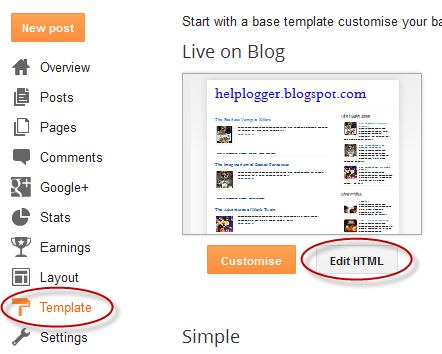
    5) Go again to Template and click the "Edit HTML" button

    blogger template, edit html

    6) Select all the code of your current template and delete it, then paste the code that you just copied earlier
    7) Preview your blog and if everything is ok, hit the 'Save Template' button.

    Please note that this method might delete some of your widgets, so if you want to keep any of them, just Browse for the CustomizeMe.xml file (step 2) and click on the "Upload" button (ignore the rest of the steps).

    And that's it! Now you are ready to use the CustomizeMe Blogger template.

    Adding menu items

    Go to Template > Edit HTML, click anywhere inside the code area and press the CTRL + F keys. Inside the search box, type "item 1" and hit Enter to find it - see the screenshot below

    change blogger template html

    Change Item 1, 2, 3... with your page titles and replace "add-url-here" text with your url. Finally, click the "Save template" button to save the changes.

    Recent Posts & Comments Widgets

    Search (CTRL + F) for the following address and replace it with your own (you will find it twice and you must change it in both places):
    http://helplogger.blogspot.com

    blogger template html

    Please pay attention to not have two forward slashes at the end of your address, otherwise the scripts will not be able to read the blog's feeds. Save your template after you have made these changes.

    Enabling "About the author" profile

    Go to "Layout" and click the "Edit" link of the "Blog posts" element. In the pop-up window that appears, check the "Show Author Profile Below Post" option and hit Save.

    blogger author profile

    Changing colors and fonts in the CustomizeMe Template

    Go to Template > click the "Customize" button. Here you can do lots of cool stuff, like change all the default fonts, text and background colors - basically, anything you want.

    Some of the customizations that you can make:
    Add a Background image: Background > Upload Image > Browse and hit Done

    blogger template designer, backgrounds

    Change Fonts, Texts and Background Colors: go to Advanced > select the Element that you want to customize > select your favorite colors and fonts.

    blogger advanced designer

    To remove a color, just type "transparent" inside the text box as you can see in the above screenshot (4).

    Once you're satisfied with the result, hit the "Apply to blog" button and view your blog. That's it!
    Have fun customizing it ;)

    Wednesday, July 16, 2014

    Testing robots.txt files made easier

    Webmaster level: intermediate-advanced

    To crawl, or not to crawl, that is the robots.txt question.

    Making and maintaining correct robots.txt files can sometimes be difficult. While most sites have it easy (tip: they often don't even need a robots.txt file!), finding the directives within a large robots.txt file that are or were blocking individual URLs can be quite tricky. To make that easier, we're now announcing an updated robots.txt testing tool in Webmaster Tools.

    You can find the updated testing tool in Webmaster Tools within the Crawl section:

    Here you'll see the current robots.txt file, and can test new URLs to see whether they're disallowed for crawling. To guide your way through complicated directives, it will highlight the specific one that led to the final decision. You can make changes in the file and test those too, you'll just need to upload the new version of the file to your server afterwards to make the changes take effect. Our developers site has more about robots.txt directives and how the files are processed.

    Additionally, you'll be able to review older versions of your robots.txt file, and see when access issues block us from crawling. For example, if Googlebot sees a 500 server error for the robots.txt file, we'll generally pause further crawling of the website.

    Since there may be some errors or warnings shown for your existing sites, we recommend double-checking their robots.txt files. You can also combine it with other parts of Webmaster Tools: for example, you might use the updated Fetch as Google tool to render important pages on your website. If any blocked URLs are reported, you can use this robots.txt tester to find the directive that's blocking them, and, of course, then improve that. A common problem we've seen comes from old robots.txt files that block CSS, JavaScript, or mobile content — fixing that is often trivial once you've seen it.

    We hope this updated tool makes it easier for you to test & maintain the robots.txt file. Should you have any questions, or need help with crafting a good set of directives, feel free to drop by our webmaster's help forum!

    Monday, July 14, 2014

    Promoting modern websites for modern devices in Google search results

    Webmaster level: all
    A common annoyance for web users is when websites require browser technologies that are not supported by their device. When users access such pages, they may see nothing but a blank space or miss out a large portion of the page's contents.
    Starting today in our English search results in the US, we will indicate to searchers when our algorithms detect pages that may not work on their devices. For example, Adobe Flash is not supported on iOS devices or on Android versions 4.1 and higher, and a page whose contents are mostly Flash may be noted like this:

    This search label has been deprecated. 

    Developing modern multi-device websites

    Fortunately, making websites that work on all modern devices is not that hard: websites can use HTML5 since it is universally supported, sometimes exclusively, by all devices. To help webmasters build websites that work on all types of devices regardless of the type of content they wish to serve, we recently announced two resources:
    • Web Fundamentals: a curated source for modern best practices.
    • Web Starter Kit: a starter framework supporting the Web Fundamentals best practices out of the box.
    By following the best practices described in Web Fundamentals you can build a responsive web design, which has long been Google's recommendation for search-friendly sites. Be sure not to block crawling of any Googlebot of the page assets (CSS, JavaScript, and images) using robots.txt or otherwise. Being able to access these external files fully helps our algorithms detect your site's responsive web design configuration and treat it appropriately. You can use the Fetch and render as Google feature in Webmaster Tools to test how our indexing algorithms see your site.
    As always, if you need more help you can ask a question in our webmaster forum.

    Troubleshooting hreflang annotations in Webmaster Tools

    If you are targeting users in more than one country, chances are you already heard about rel-alternate-hreflang. If you haven't, in short, this annotation enables Google and other search engines to serve the correct language or regional version of pages to searchers, which can lead to increased user satisfaction.

    Making sure the deployed annotations are usable by search engines can be rather difficult, especially on sites with many pages, and site owners all around the world haven’t been shy telling us about this. Today we're releasing a feature that should make debugging rel-alternate-hreflang annotations much easier.

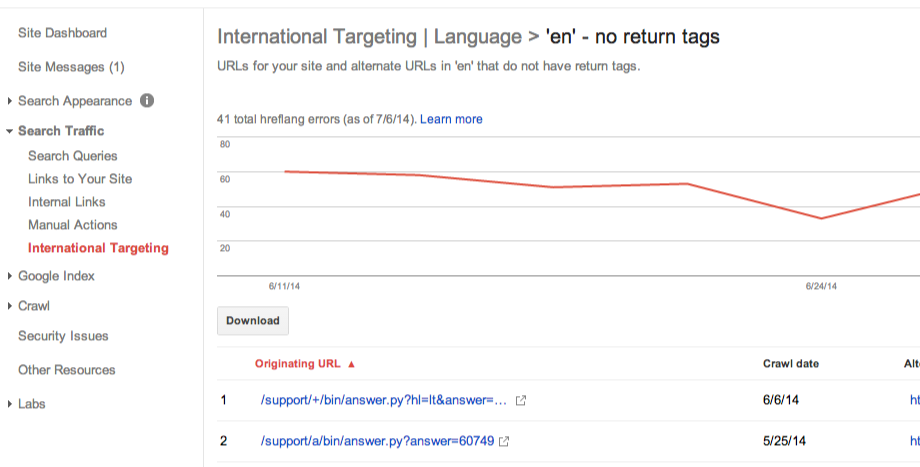
    The Language Targeting section in the International Targeting feature enables you to identify two of the most common issues with hreflang annotations:
    • Missing return links: annotations must be confirmed from the pages they are pointing to. If page A links to page B, page B must link back to page A, otherwise the annotations may not be interpreted correctly.
      For each error of this kind we report where and when we detected them, as well as where the return link is expected to be.
    incorrect_backlinks.png

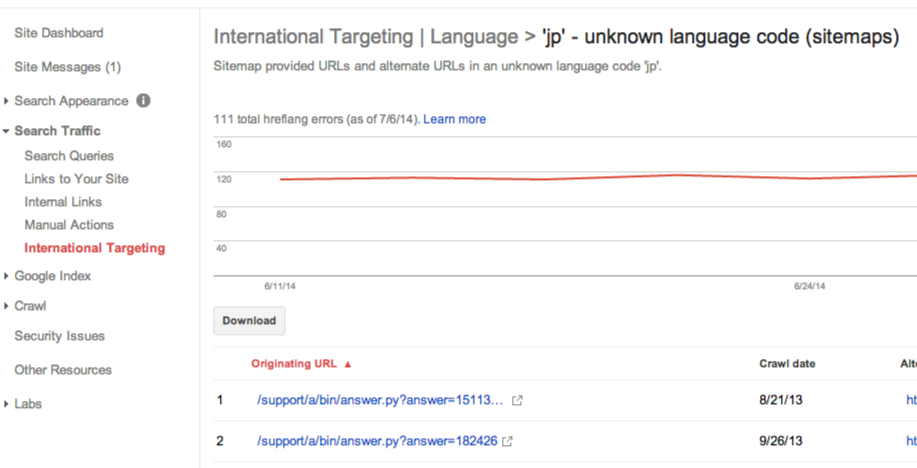
    • Incorrect hreflang values: The value of the hreflang attribute must either be a language code in ISO 639-1 format such as "es", or a combination of language and country code such as "es-AR", where the country code is in ISO 3166-1 Alpha 2 format.
      In case our indexing systems detect language or country codes that are not in these formats, we provide example URLs to help you fix them.

    incorrect_language.png

    Additionally, we've moved the geographic targeting setting to this part of Webmaster Tools, so that you can find all information relevant to international and multilingual targeting in the same place.

    We hope you'll find this new feature useful and that it helps you to identify issues with the rel-hreflang-implementation on your site. If you have comments or questions about the feature, please post in our Webmaster Help Forum.

    Posted by Gary Illyes, Webmaster Trends

    Thursday, July 10, 2014

    How To Set Up a Custom Domain in Blogger

    Our web today is a wonderful place. It's increasingly become a knowledge hub for strollers around the globe. And you know what the best part is? It does not have a religion, race or color, that's where perhaps its strength lies in. Point being, no matter what you are after, from details of products to how to use them, from fruit varieties to language origins, from how to hack Facebook account to how to set up a custom domain name in Blogger. Each and everything is there, in abundance and easily available. Now I know you are here to understand how you can setup/host your custom domain on your Blogger account. So let's get on with it, without further delay.
    blogger custom domain, godaddy

    Before we start

    It's important that you realize, it isn't difficult to add a custom domain into your blogger account. If you are a blogger, it's perfect if you already own your own blog, it shows your passion and love for blogging and provides you with freedom to move from one platform to another, when and if you need. Also from users perspective, it's much easier for them to remember and visit your blog at customized address like myblog.com than myblog.blogspot.com.

    One of the best things about Blogger is that it does not push you to host your site with blogger. It is entirely your own choice to choose from either of two hosting plans 'hosting on BlogSpot' with address myblog.blogspot.com, or going with a custom domain with address myblog.com.

    Some Popular Web Hosting Sites:

    If you don't already have purchased yourself a custom domain, these are the places that you should be looking for to get one:
    • EasyDNS
    • 1and1
    • GoDaddy.com
    • Yahoo! Small Business
    • No-IP
    • ix web hosting
    So now if you have bought yourself a domain, from either of these you would have an IP address and a name. Let's assume our is 'mynewdomain'.com.

    Well, it's time to start adding a custom domain to your blogger account.

    Remember:

    Here we are using setup for GoDaddy.com, the most popular domain name provider. For custom domains from other sites, the steps are almost same, so don't vanish.

    Setting Up Blogger Custom Domain

    Step 1. Login to your Blogger account at www.blogger.com.

    Step 2. Click on your blog and then go to "Settings", choose "Basic".

    blogger custom domain

    Step 3. Under "Publishing" section, click "+ Setup a 3rd party URL for your blog".

    Step 4. Under "Third-party domain settings" next to "http://" type your domain that you just purchased and make sure that you don't forget to add the "www" prefix to the domain name.

    set up custom domain in blogger

    Step 5. Click "View settings instructions" to get the blogger's official instructions. On the Blogger instruction page, choose the "On a top-level domain (www.example.com)" option.

    custom domain in blogger

    Step 6. Under the point 9 of instructions, 4 IP addresses will be given, copy and save all 4 of them.

    Step 7. Go back to your Blogger Settings and press Save. It won't get saved and an error will appear saying 'We have not been able to verify your authority to this domain. Error 32.'

    setting up blogger custom domain

    Step 8. Under the error, you will see two fields "Name, Label or Host Field" and "Destination, target, or Points To" field. Copy data of both rows from these fields.

    Step 9. Now log in to your GoDaddy.com account and click on "My account" on the upper right corner > select "Manage my Domains".

    godaddy manage domains

    Step 10. Here you should see your purchased domain name > just click on your domain name.

    godaddy domains

    Step 11. Click on the "DNS Zone File" tab next to Settings and choose "Use Classic DNS Manager".
    use classic dns manager

    Step 12. Next, click the "Edit" button to edit your DNS Zone File.

    blogger custom domain

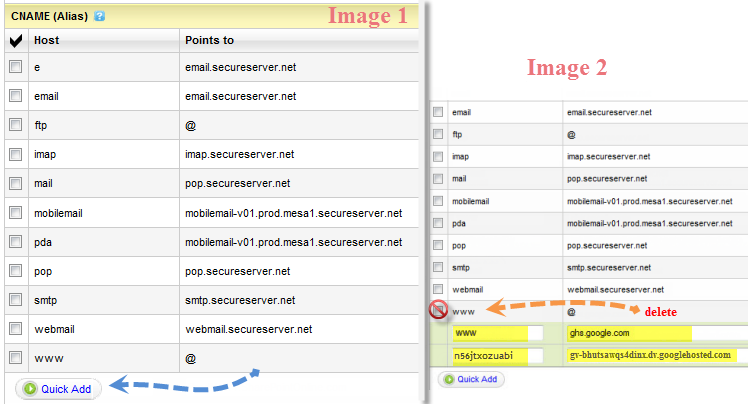
    Step 13. Under the "CNAME (Alias)" menu, click "Quick Add" button at the bottom of the screen (see image 1 in the below screnshoot).

    Step 14. In the Edit box that now appeared, enter "www" in the first box and "ghs.google.com" in the second.

    blogger custom domain

    Step 15. Click "Quick Add" again and enter details from second row of the data we saved in step 8.

    Step 16. Under the "A (Host)" menu, again choose Quick Add (see the below image).

    Step 17. Host will be @ and the "Points to" value should be the one provided by Google IPs, saved in step 6 above. These are the Google IPs that you should get:
    216.239.32.21
    216.239.34.21
    216.239.36.21
    216.239.38.21
    Step 18. Add all 4 of them one by one and delete old host as you won't need it anymore.

    custom domain in blogger

    Step 19. At the top of the page, click on the "Save Zone File" button to save your setings.

    Step 20. Now go back to Blogger and try to save settings again. The registration process takes 24-48 hours, so don't worry if you get an error again. Come again later to Blogger after 24-48 hours, repeat step 2 to 4, press Save and the error should be gone.

    Step 21. After your URL starts working, click on the "Edit" link next to domain name on setting page.

    Step 22. Check the "Redirect... to..." checkbox below your site address to ensure that even if the visitors will miss out the www part, they will still be able to reach your site.

    blogger custom domain

    Step 23. And that's it. Enjoy your new URL!

    So this was easy, right? Only a handful of steps and we have successfully completed our mission of adding our custom domain in our blogger account. In case you haven't yet, stay patient wait for 2 days and try again. Or repeat steps 1-22, and make sure you don't miss any. Otherwise your new URL is ready and all set to roam around the wonderful world of web.

    Wednesday, July 9, 2014

    Add Custom Robots.txt File in Blogger

    Are you one of modern day bloggers without much knowledge of technical details, looking to enhance your blog's ratings and audience but don't know how to and your blogger friend told you that you can get a hike into your site visitors via editing your Robots.txt file? Or maybe you don't want search engines spiders to crawl through your pages? Or you do have a technical background but don't want to risk making changes without expert's words on topic? Well in either case, this is the right place for you to be. In this tutorial, you will see how to add Custom Robots.txt file in Blogger in a few easy steps.
    custom robots.txt

    But before we open and start working on Robots.txt, let's have a brief overview of its significance:
    Warning! Use with caution. Incorrect use of these features can result in your blog being ignored by search engines.

    What is Robots.txt?

    With every blog that you create/post on your site, a related Robots.txt file is auto-generated by Blogger. The purpose of this file is to inform incoming robots (spiders, crawlers etc. sent by search engines like Google, Yahoo) about your blog, its structure and to tell whether or not to crawl pages on your blog. You as a blogger would like certain pages of your site to be indexed and crawled by search engines, while others you might prefer not to be indexed, like a label page, demo page or any other irrelevant page.

    How do they see Robots.txt?

    Well, Robots.txt is the first thing these spiders view as soon as they reach your site. Your Robots.txt is like a hour flight attendant, that directs you to your seat and keep checking that you don't enter private areas. Therefore, all the incoming spiders would only index files that Robots.txt would tell to, keeping others saved from indexing.

    Where is Robots.txt located?

    You can easily view your Robots.txt file either on your browser by adding /robots.txt to your blog address like http://myblog.blogspot.com/robots.txt or by simply signing into your blog and choosing Settings > Search engine Preference > Crawlers and indexing and selecting Edit next to Custom robots.txt.

    blogger custom robots

    How Robots.txt does looks like?

    If you haven't touched your robots.txt file yet, it should look something like this:
    User-agent: Mediapartners-Google
    Disallow:
    User-agent: *
    Disallow: /search
    Allow: /
    Sitemap: http://myblog.blogspot.com/feeds/posts/default?orderby=UPDATED
    Don't worry if it isn't colored or there isn't any line breaks in code, I colored it and placed line breaks so that you may understand what these words mean.

    User-agent:Media partners-Google:
    Mediapartners-Google is Google's AdSense robot that would often crawl your site looking for relevant ads to serve on your blog or site. If you disallow this option, they won't be able to see any ads on your specified posts or pages. Similarly, if you are not using Google AdSense ads on your site, simply remove both these lines.

    User-agent: *
    Those of you with little programming experience must have guessed the symbolic nature of character '*' (wildcard). For others, it specifies that this portion (and the lines beneath) is for all of you incoming spiders, robots, and crawlers.

    Disallow: /search
    Keyword Disallow, specifies the 'not to' do things for your blog. Add /search next to it, and that means you are guiding robots not to crawl the search pages /search results of your site. Therefore, a page result like http://myblog.blogspot.com/search/label/mylabel will never be crawled and indexed.

    Allow: /
    Keyword Allow specifies 'to do' things for your blog. Adding '/' means that the robot may crawl your homepage.

    Sitemap:
    Keyword Sitemap refers to our blogs sitemap; the given code here tells robots to index every new post. By specifying it with a link, we are optimizing it for efficient crawling for incoming guests, through which incoming robots will find path to our entire blog posts links, ensuring none of our posted blog posts will be left out from the SEO perspective.

    However by default, the robot will index only 25 posts, so if you want to increase the number of index files, then replace the sitemap link with this one:
    Sitemap: http://myblog.blogspot.com/atom.xml?redirect=false&start-index=1&max-results=500
    And if you have more than 500 published posts, then you can use these two sitemaps like below:
    Sitemap: http://myblog.blogspot.com/atom.xml?redirect=false&start-index=1&max-results=500
    Sitemap: http://myblog.blogspot.com/atom.xml?redirect=false&start-index=500&max-results=1000

    How to prevent posts/pages from being indexed and crawled?

    In case you haven't yet discovered yourself, here is how to stop spiders from crawling and indexing particular pages or posts:

    Disallow Particular Post

    Disallow: /yyyy/mm/post-url.html
    The /yyy/mm part specifies your blog posts publishing year and month and /post-url.html is the page you want them not to crawl. To prevent a post from being indexed/crawled simply copy the URL of your post that you want to exclude from indexing and remove the blog address from the beginning.

    Disallow Particular Page

    To disallow a particular page, you can use the same method as above. Just copy the page URL and remove your blog address from it, so that it will look something like this:
    Disallow: /p/page-url.html

    Adding Custom Robots.Txt to Blogger

    Now let's see how exactly you can add Custom Robots.txt file in Blogger:

    1. Sign in to you blogger account and click on your blog.
    2. Go to Settings > Search Preferences  > Crawlers and indexing.

    blogger custom robots.txt

    3. Select 'Edit' next to Custom robots.txt and check the 'Yes' check box.
    4. Paste your code or make changes as per your needs.

    custom robots.txt

    5. Once you are done, press Save Changes button.
    6. And congratulations, you are done!

    How to see if changes are being made to Robots.txt?

    As explained above, simply type your blog address in the url bar of your browser and add /robots.txt at the end of your url as you can see in this example below:
    http://helplogger.blogspot.com/robots.txt
    Once you visit the robots.txt file, you will see the code which you are using in your custom robots.txt file. See the below screenshot:

    custom robots

    Final Words:
    Are we through then bloggers? Are you done adding the Custom Robots.txt in Blogger? It was easy, once you knew what those code words meant. If you couldn't get it for the first time, just go again through the tutorial and before long, you will be customizing your friends' robots.txt files.

    In any case, from SEO and site ratings it's important to make that tiny bit of changes to your robots.txt file, so don't be a sloth. Learning is fun, as long as its free, isn't it?